The Easiest Way to Transfer files from iPhone to Android wirelessly
Discover how iOS 26.3’s new Transfer to Android feature makes switching from iPhone to Android effortless in 2026. Step-by-step guide to move photos, messages, apps & more.

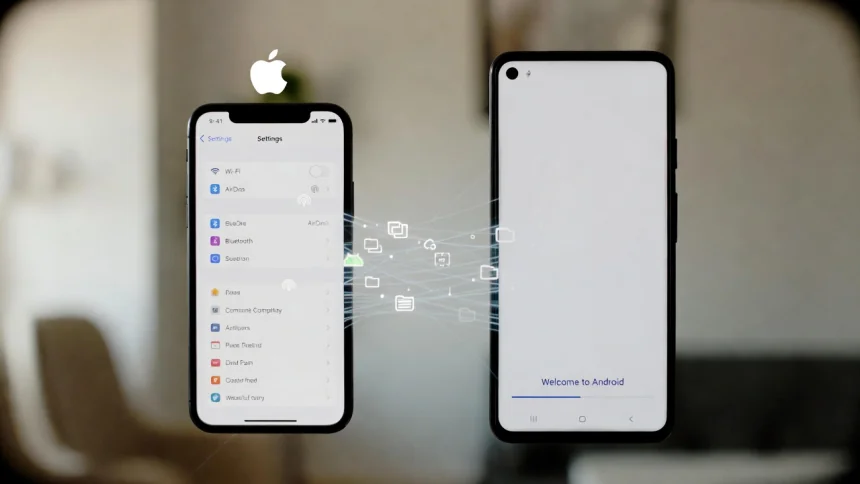
In a surprising move that signals a new era of cross-platform cooperation, Apple has rolled out iOS 26.3, featuring a built-in "Transfer to Android" tool designed to simplify the migration process for users ditching their iPhones for Android devices. This update, released on February 12, 2026, comes as part of a joint effort between Apple and Google to enhance interoperability between the two ecosystems. Gone are the days of cumbersome third-party apps or manual data copying—now, switching is as straightforward as placing your devices side by side.
This feature arrives amid growing demands for user freedom in choosing their preferred mobile OS. Whether you're drawn to Android's customization options, innovative hardware from brands like Samsung or Google Pixel, or simply want a change, iOS 26.3 makes the transition smoother than ever. In this article, we'll walk you through the step-by-step process, what data gets transferred, and some pro tips to ensure a seamless switch.
Step-by-Step Guide to Using Transfer to Android
Before you begin, ensure your iPhone is updated to iOS 26.3 and your new Android device is running the latest software (Android 16 or later, with the corresponding transfer support). Both devices should be charged, connected to Wi-Fi, and have Bluetooth enabled. It's also wise to back up your iPhone to iCloud just in case.
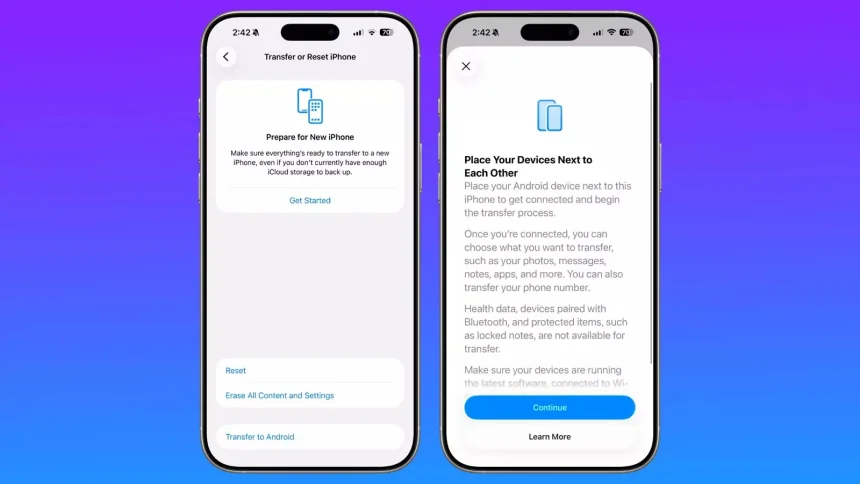
Navigate to the Transfer Option on Your iPhone: Open the Settings app, scroll down to General, then tap "Transfer or Reset iPhone." At the bottom, you'll see the new "Transfer to Android" option. Tap it to start.
Place Devices Next to Each Other: The iPhone will prompt you to place your Android device nearby. This uses proximity detection (similar to Quick Start for new iPhones) to establish a secure wireless connection. If proximity doesn't work, you can scan a QR code displayed on the Android device using your iPhone's camera.
Select Data to Transfer: Once connected, choose what you want to move over. Options include photos, messages (including iMessage history converted to SMS/MMS or RCS), notes, apps (free apps will download automatically on Android if available), passwords, contacts, calendars, and even your phone number for eSIM transfer. The process is customizable, so you can skip items if needed.
Initiate and Monitor the Transfer: Hit "Continue," and the data will transfer wirelessly. Depending on your data volume, this could take anywhere from a few minutes to an hour. Keep the devices close and plugged in to avoid interruptions.
Complete Setup on Android: After the transfer, your Android device will guide you through the final setup, like signing into Google services and verifying transferred apps. Your iPhone will remain intact unless you choose to erase it afterward.
What Transfers and What Doesn't
The Transfer to Android tool handles most essentials seamlessly:
- Yes: Photos/videos, messages, contacts, calendars, notes, apps, passwords, phone number.
- No: Health data from Apple Health, paired Bluetooth devices (like AirPods or Apple Watch), protected items such as locked notes or secure enclave data.
For non-transferable items, you'll need to export them manually—e.g., use Google Fit for health data or re-pair accessories on Android.
Tips for a Smooth Transition
- Test Compatibility: Not all apps have direct Android equivalents, so check the Google Play Store beforehand.
- Handle Media Separately if Needed: If you have a massive photo library, consider using Google Photos as a bridge for cloud syncing.
- Post-Transfer Checks: Verify messages and contacts on Android. If anything's missing, Google's Switch to Android app can serve as a fallback.
- Security First: The transfer uses end-to-end encryption, but always review privacy settings on your new device.
With iOS 26.3's Transfer to Android feature, switching from iPhone to Android in 2026 has never been easier—potentially reshaping how users view platform loyalty. If you've been eyeing that new Pixel or Galaxy, now's the time to make the leap without fearing data loss. Apple's move might even encourage more innovation across ecosystems, benefiting everyone in the long run.